
Outstanding Tiny Desk AI Template: CapCut, DIY Prompts or One Photo
Where to find an Outstanding Tiny Desk CapCut template, what the do-it-yourself AI prompt route takes, and how to make the Tiny Desk AI video from one photo instead — compared side by side.
The short answer
There is no single official Tiny Desk AI template. CapCut templates come from creators: tap “Try this template” on a TikTok or search “Tiny Desk” in CapCut’s Templates. The do-it-yourself route means reference images, several AI generations and an editor to stitch them to the song. The shortest route is one photo: EffectDrop generates the 15-second, 9:16 clip with you as the lead singer in one generation, and you add the sound when you post.
Make your own Tiny Desk AI video from one photo →Update history
— Added the difference between Kapwing’s four-clip editing template and a one-photo video generator; competitor specifications are page observations, not our generation tests.
The Tiny Desk AI trend puts someone new in Charlie Wilson’s place as he sings “Outstanding” (here is where it comes from). There are three ways to make one. Here is what each takes.
Where to find an Outstanding Tiny Desk CapCut template
Templates are made and uploaded by creators, so what you find changes from day to day. We have not tested a specific Tiny Desk template, so treat these as the usual ways in and check the preview before you use one:
- From TikTok. Open a Tiny Desk video you like. If it was made with a template, a CapCut · Try this template label sits above the caption; tap it and the template opens in CapCut.
- In CapCut. Go to Templates and search Tiny Desk or Outstanding. The number of uses on each is a quick way to find the ones that work.
Then tap Use template, add the photo or clip it asks for, let it process and export. Some templates only show up in certain countries or need CapCut Pro. A link that opens nothing may be limited by country or account, or may have been taken down.
Does a Tiny Desk AI trend template generate the whole video?
Not necessarily. Kapwing’s Tiny Desk AI Trend Template is an editing layout: its page tells you to create five character references, generate four clips, and replace four video placeholders. The listed canvas is 720 × 1280 with six layers. Those are the published setup instructions we checked on November 3, not a paid test of its generator.
| Route | What you supply | What the template does |
|---|---|---|
| Kapwing’s editing layout | Four already generated clips | Combines the clips with timed transitions and the audio |
| A CapCut template | Whatever its preview and upload fields request | May edit footage, add a sticker or run an AI effect; check the specific template |
| EffectDrop’s one-photo generator | One photo of one consenting adult | Generates a new 15-second, 9:16 clip; only the lead singer is replaced and the download is silent |
A page promising a “Tiny Desk effect” may mean a desk-scene image rather than a concert video. Check its actual input fields, output format and sound settings before paying. We have not generated videos with those competing services.
What a template can and can’t do
Templates for this trend come in different kinds, and the preview is the only reliable way to tell which one you have:
- Sticker and photo edits. Your photo or clip goes over the original clip, often with an “Outstanding” sticker. Quick, but you are pasted on, not singing.
- AI templates. These run an AI effect inside CapCut on your photo. Results, length and price depend on the template and your CapCut plan.
- Some include the original clip and song, so the post carries NPR’s footage and the recording, and can be muted or taken down on some platforms.
- Templates disappear, often right when a trend peaks.
Doing it yourself with an AI video model
The detailed tutorials, such as Kapwing’s guide, rebuild the clip shot by shot: make a character sheet for each person, turn the performance into motion references, generate each shot separately with an AI video model, then line the clips up with the song in an editor. That is around four generations plus editing for one video, but it lets you recast the whole band.
If you go this way, these are three things we built into our own version of the effect:
- Ask for the face to stay recognizable during the laugh. The close-up laugh is where faces drift most.
- Ask for a realistic saxophone and hands. Instruments and fingers are where AI video goes wrong first.
- Leave “Tiny Desk” and “NPR” out of the prompt. Brand names invite logos and text in the frame; describe the room instead: a small office corner packed with records, books, toys and warm desk lamps.
Expect several tries. Every generation is paid, and the 1.4-second opening shot and the cut into the laugh are easy to lose.
Is there a Tiny Desk AI prompt I can copy?
No single prompt makes this video: the DIY route needs a prompt per shot plus motion references, and one-photo tools such as ours take no prompt at all. If you start the DIY route with a reference portrait, this is an example to adapt in your image tool. We have not tested it, and it will not recreate the clip on its own:
Create a clear waist-up reference portrait of the consenting adult in the uploaded photo. Preserve their facial features, hair and visible outfit. Use even lighting and a plain background. One person, no text or logos.
For per-shot video prompts, Kapwing’s guide publishes the ones it used, written for its own model and multi-person workflow.
The one-photo way
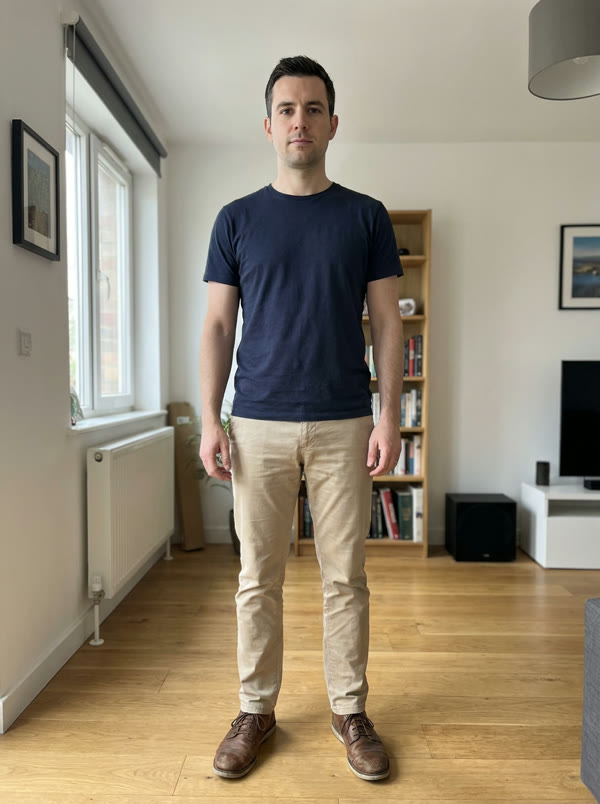
Tiny Desk AI does the whole clip in one generation. You upload one photo; you become the lead singer in the side-on opening and the laugh close-up, and the band, the room and the instruments are AI-generated. The four shots and their cuts are built in, so nothing needs stitching.
Which one should you use?
| DIY with an AI model | CapCut template | One photo on EffectDrop | |
|---|---|---|---|
| What you provide | Reference images for each person | A photo or clip, depending on the template | One photo |
| Generations | About four, plus retries | Depends on the template; we have not tested one | One (about 5 minutes in our tests) |
| Editing | Yes: stitch the shots, add the song | Done by the template | None |
| Who changes | Anyone, the whole band | Depends on the template | You, as the lead singer |
| Sound | You line it up | Depends on the template | Silent; add the sound when you post |
| Format | Your choice | Depends on the template | 15 s, 9:16 |
If you want your whole group in the band, the DIY route is the one we know does it; the one-photo tool does not, and we have not checked templates for it. If you want yourself laughing in Wilson’s place without an editor, use one photo.
Make it from one photo — one photo, one generation, no editing.
Questions
- Do I need CapCut? Only for the template route. The one-photo tool runs in the browser, and you add the sound in TikTok, Reels or Shorts when you post.
- Can I do it on my phone? Templates live in the CapCut app. The one-photo tool is a web page: upload from your camera roll, then download the MP4.
- Can ChatGPT make it for me? ChatGPT can help you write prompts or captions. Whether your ChatGPT plan can generate this video is something we have not tested, and EffectDrop is not connected to ChatGPT.
Tips either way
- No intro. Start on the first shot; the trend lives on recognition in the first second.
- Keep it vertical. 9:16 for TikTok, Reels and Shorts.
- Use the trend’s sound, not the 1982 studio recording: here is why and how.
- Only use photos of people who said yes, and no celebrities, politicians or children.
More on the trend: what the Tiny Desk AI trend is and the song and how to add it, or go straight to the Tiny Desk AI video generator. Other formats going around now: this week’s AI video trends.
EffectDrop is an independent AI parody tool. It is not affiliated with or endorsed by NPR, Tiny Desk, Charlie Wilson or The Gap Band. “Tiny Desk” is a trademark of NPR.